Coming 9 August 2026, NotionApps makers will be able to build real portals inside a single application — not “all public” or “all private,” but a mix of both.
You’ll also get Content Pages: screens that are not linked to a Notion database, where you can drop in full HTML and CSS for branded landing pages, consent flows, help hubs, and marketing-style intros.
We’ve already been dogfooding this on a sandbox portal:
 Client Onboarding Portal (staging demo)
Why this matters
Until now, many apps forced a hard choice:
- keep everything behind login, or
- make the whole app broadly accessible
Portals don’t work that way. Guests need a welcoming front door. Clients need a private workspace after they sign in. Staff need queues and approvals. All of that should live in one NotionApps app with one share link.
That’s what this release unlocks.
See it in action: guest vs signed-in
As a guest (no login)
Open the demo link above while signed out. You land on a public Welcome Content Page — custom layout, consent UI, and a Start Intake path — without authenticating first.
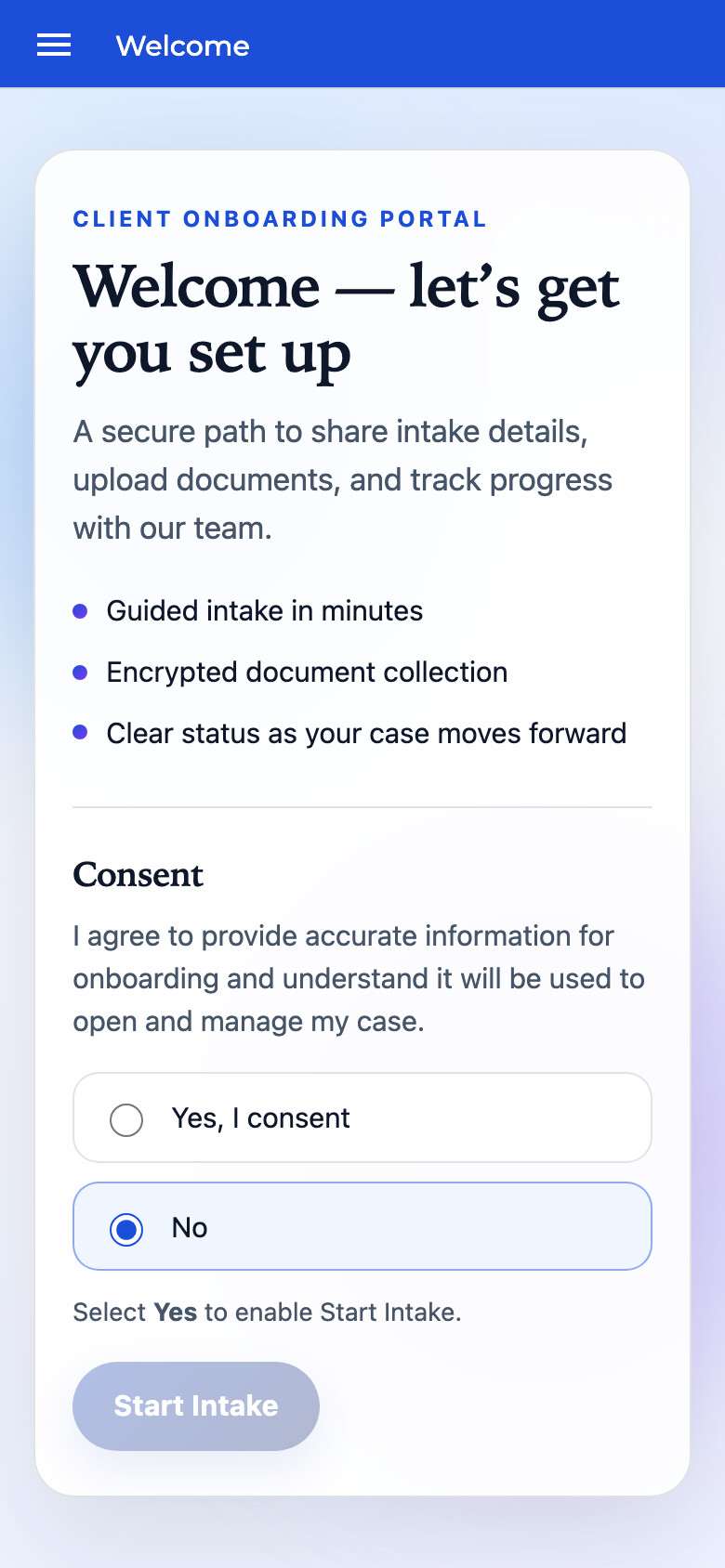
Guest view: public Welcome screen (Content Page with custom HTML/CSS). Private client/staff screens stay behind login.
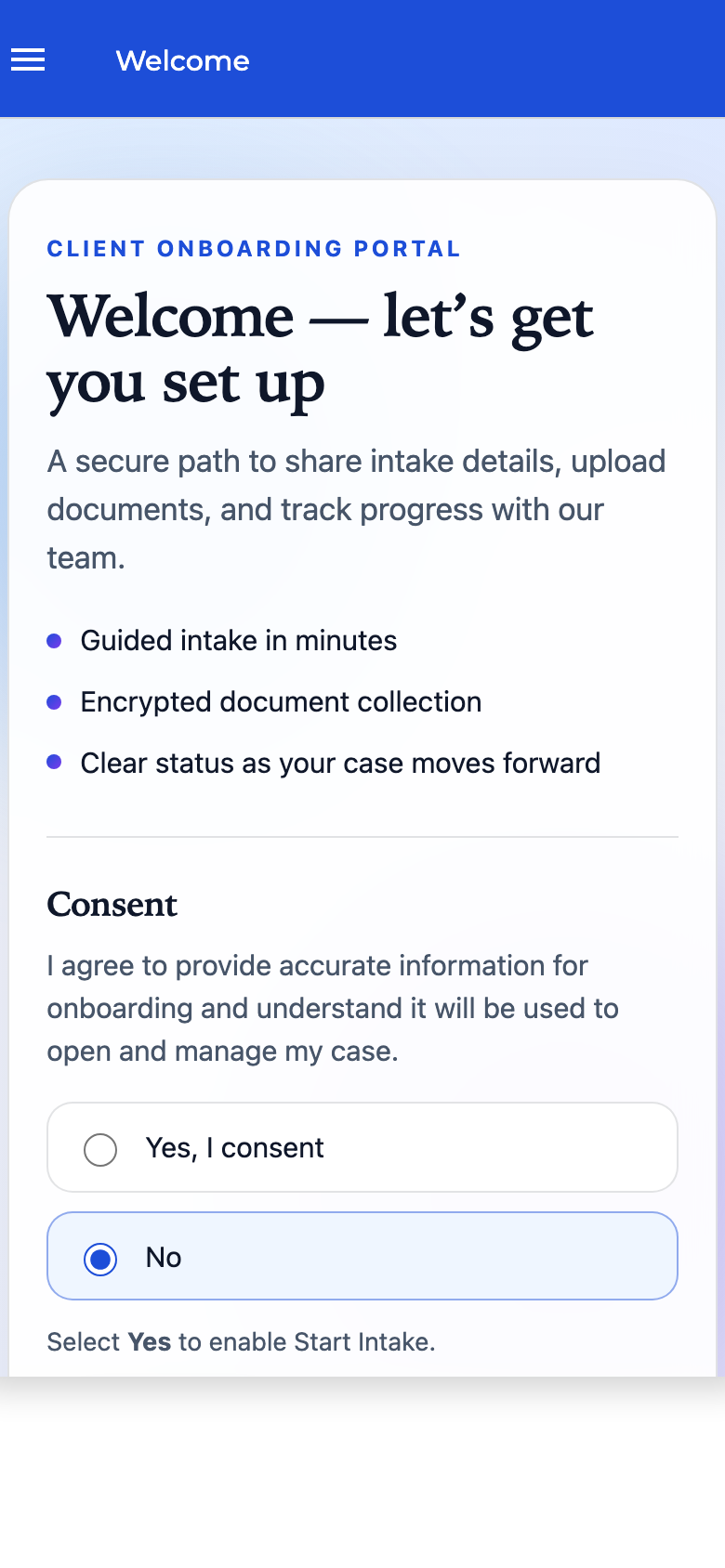
Guest navigation: only screens you’ve allowed for guests appear in the menu. Use Log in to enter the private portal.
After login
Once a client signs in, they enter the private portal: My Onboarding, documents, messages, and the rest of the signed-in experience. The public Welcome page can stay available via link if you want — but it no longer has to clutter signed-in navigation.
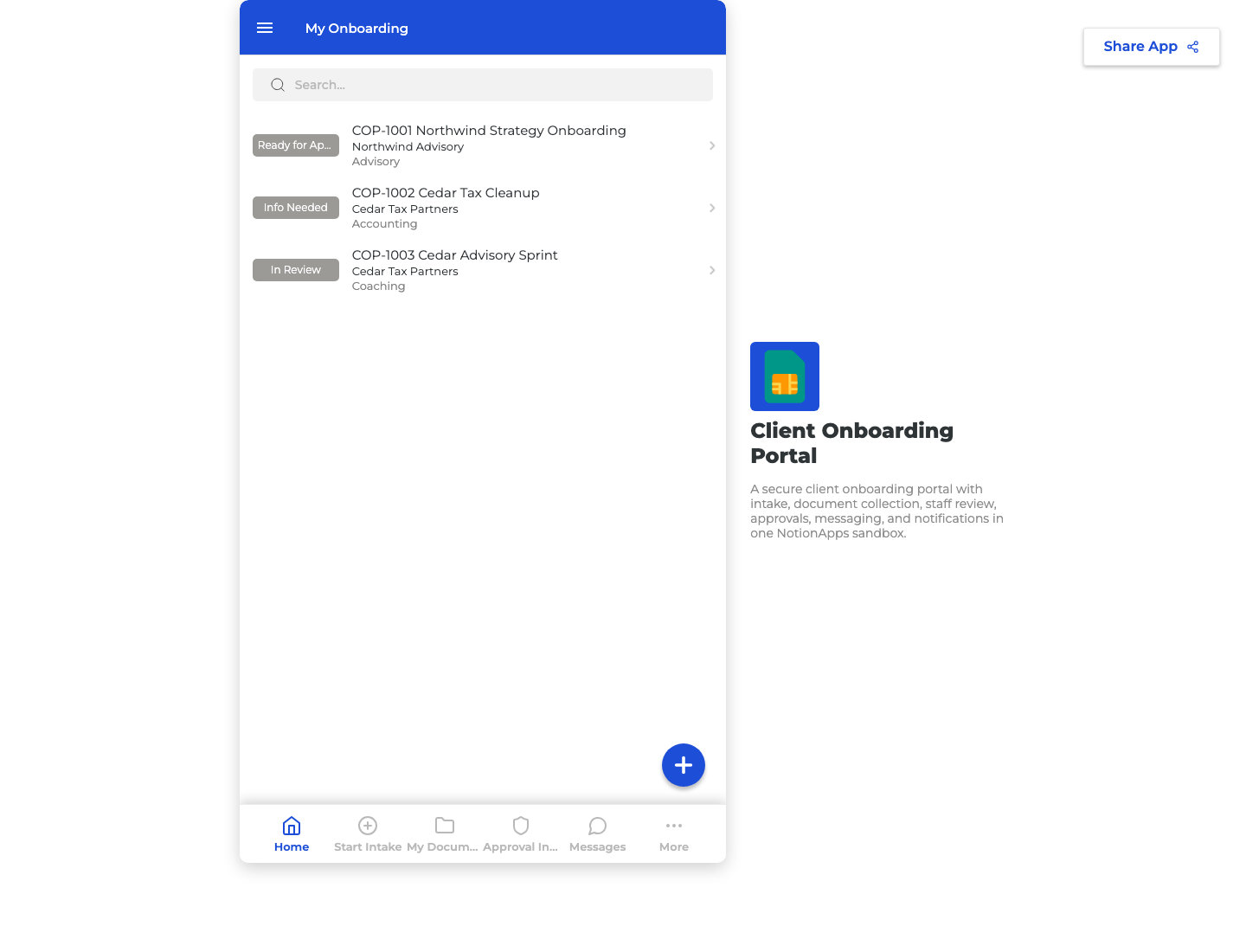
Signed-in client view: private, database-backed screens with full app navigation.
Same app. Two audiences. Clear boundaries.
What’s new: per-screen toggles
Every relevant screen gets explicit switches in the builder. Here’s the mental model.
1) Public access
Label: Public access
What it does: Anyone with the app link can open this screen without signing in. Other screens stay private.
Default when you turn a screen public:
- Guest navigation for that screen turns off (link-only for guests)
- Signed-in navigation stays on unless you turn it off
So “make Welcome public” does not dump every private screen into the open internet. It only opens the screens you mark public.
2) Show in navigation for guests
Label: Show in navigation for guests
What it does:
- On → guests see the screen in the hamburger menu / bottom tray / top tabs
- Off → guests can still open it via deep links, form links (
?form=), buttons, and in-app links — it just won’t appear in guest chrome
Use off for “invite-only” public forms or link-only landing pages.
3) Show in navigation when signed in
Label: Show in navigation when signed in
What it does:
- On → signed-in users see the screen in navigation
- Off → signed-in users don’t see it in chrome, but can still open it via buttons, links, and form actions
This is how you keep a public Welcome / marketing page out of the signed-in portal chrome while still using it as the guest front door.
4) Show in navigation (private screens)
For screens that are not public, you still get the classic:
Label: Show in navigation
Hide a private screen from chrome without removing routability — perfect for detail screens, intermediate forms, or admin utilities that should only open from a button or workflow.
Quick reference
| Toggle | Applies to | On | Off |
|---|---|---|---|
| Public access | Any supported screen | Open without login via app/form/content link | Requires sign-in (normal private behavior) |
| Show in navigation for guests | Public screens | Appears in guest menu/tabs | Link-only for guests |
| Show in navigation when signed in | Public screens | Appears in signed-in menu/tabs | Hidden from signed-in chrome; still openable via links/buttons |
| Show in navigation | Private screens | Appears in signed-in menu/tabs | Hidden from chrome; still openable via links/buttons |
Important: Hiding a screen from navigation does not revoke access by itself. It controls chrome (what shows in menus/tabs). Access still follows public vs private + your roles/visibility rules.
Content Pages: full HTML & CSS, no database required
Also arriving 9 August 2026: Content Pages.
These are screens that:
- are not bound to a Notion database
- support full HTML and CSS
- can be public or private
- can use the same navigation toggles above
- can include in-app links/buttons into create forms and other screens (great for “Start Intake” CTAs)
The COP Welcome screen is the pattern: branded intro, consent, then a handoff into the rest of the portal.
Use Content Pages for:
- portal landing / welcome experiences
- consent or instructions before a form
- help centers and FAQ hubs
- campaign or partner microsites inside your app
- “between steps” guidance that shouldn’t live as a Notion row
Database screens stay perfect for lists, records, queues, and documents. Content Pages cover the narrative layer around them.
A practical portal recipe (COP-style)
-
Welcome (Content Page)
- Public access: On
- Show in navigation for guests: On (or Off if you only want a direct link)
- Show in navigation when signed in: Off
-
Start Intake (Create Form)
- Public access: On if guests should submit before/without a full account flow
- Guest nav: usually Off (open from Welcome CTA /
?form=link) - Signed-in nav: On if clients should restart intake from the portal
-
My Onboarding / My Documents / Messages (private)
- Public access: Off
- Show in navigation: On for the signed-in workspace
-
Staff queues & approvals (private)
- Keep private
- Use roles / visibility so clients never see staff chrome
Result: guests get a beautiful front door; signed-in users get a real portal; staff get operations — all from one app URL.
What to expect on 9 August 2026
- Per-screen Public access
- Separate navigation toggles for guests vs signed-in users on public screens
- Content Pages with full HTML/CSS and no required database link
- Deep links / form links that still work when a screen is hidden from navigation
- Docs + examples (including portal patterns like the Client Onboarding Portal demo)
If you’re already designing a client portal, partner hub, or intake funnel, this is the release to build toward.
Questions, edge cases, or portal patterns you want us to showcase? Reply in-thread — we’re listening.