Coming 9 August 2026, NotionApps is getting a broader release than the original preview post described.
The headline is still mixed public + private screens in one app and Content Pages with full HTML/CSS, but the release also includes guided Workflow and Messaging controls, richer operational screens, app audience and notification preferences, relation-based personalization, desktop layout control, support-enabled nested rollup / formula sync repair, and a set of reliability fixes for public screens, queues, publish, signed-in navigation, and nested Notion values.
Full release note: 9 Aug 2026 Release
Live example we have been using while dogfooding the portal pattern:
Link: Client Onboarding Portal demo
What is coming at a glance
| Capability | What it helps you build |
|---|---|
| Per-screen public access | Keep most of an app private while selected Welcome, Content, or Create Form screens stay open to guests |
| Content Pages | Build branded landing, consent, instruction, and help screens with HTML/CSS and no Notion database |
| Guest vs signed-in navigation | Decide separately what guests see in navigation and what signed-in users see |
| Guided Workflow / Messaging | Configure common automation patterns without hand-editing power-user JSON |
| App audience & notification preferences | Keep queues and messages scoped by company, role, and notification category |
| Decision screens | Map approve/reject/qualify outcomes back to Notion statuses and collect attachments |
| Work Queues | Create multi-sheet review inboxes and task queues with claim/release/complete behavior |
| Conversation uploads | Attach files to conversation replies |
| Automation Launcher actions | Publish announcements and route users into the next screen after an action |
| Desktop split-view control | Turn off desktop list/detail split view when a single-pane layout is better |
| Relation personalization | Use relation fields in logged-in user property filters |
| Nested rollup / formula sync | Support can enable Notion-authoritative repair when nested rollups or formulas show stale or zero values |
Why this matters
Until now, many apps forced a hard choice:
- keep everything behind login, or
- make the whole app broadly accessible
Real portals do not work that way.
A guest may need a public welcome page or intake form. A client may need private documents, messages, and status updates after sign-in. A staff member may need review queues, approvals, decisions, and operational tools. With this release, those experiences can live inside one NotionApps app with one published URL, while still respecting access boundaries.
See it in action: guest vs signed-in
As a guest
Guests can land on a public Welcome Content Page without signing in. That page can explain the portal, collect consent, and send the visitor into a public intake form or another public screen.
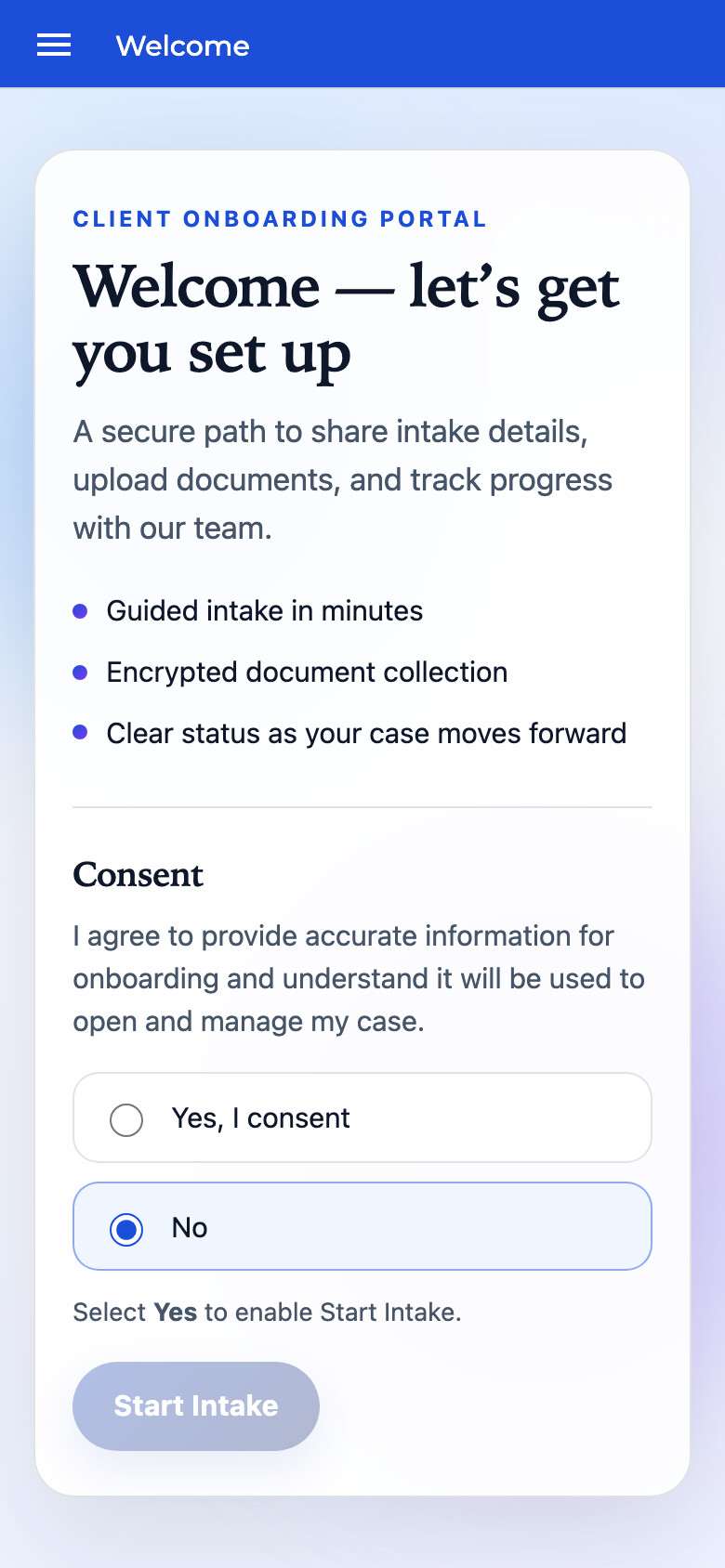
Guest view: a public Welcome screen built as a Content Page. Private client and staff screens remain behind login.
Guest navigation can be intentionally small. You decide which public screens appear in the guest menu and which public screens are link-only.
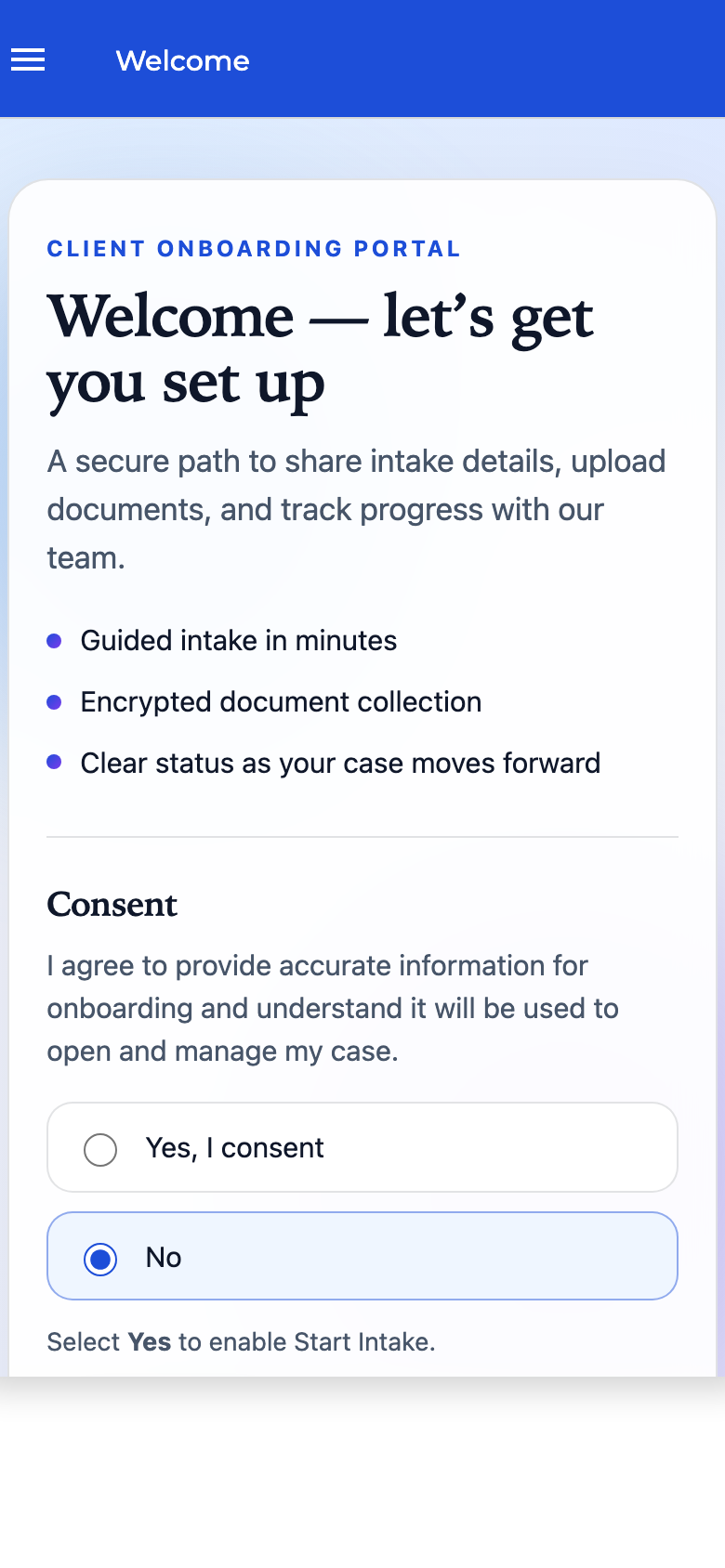
Guest navigation: only screens allowed for guests appear in the menu. Hidden public screens can still open from links, buttons, and form links.
After login
Once someone signs in, they can enter the private side of the portal: onboarding screens, documents, messages, queues, decisions, or any other database-backed screens you expose to that role.
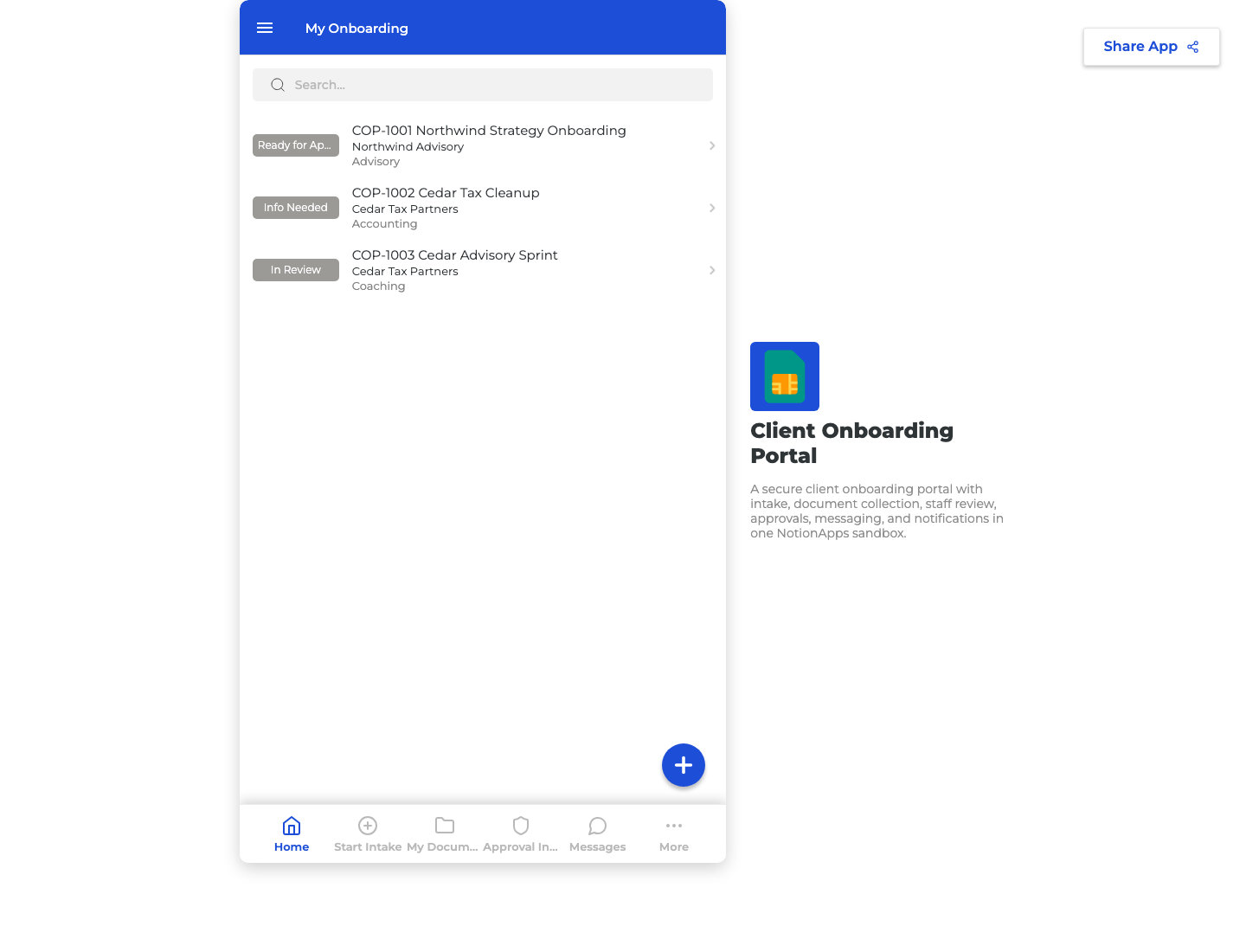
Signed-in client view: private, database-backed screens with the signed-in navigation experience.
Same app. Different audiences. Cleaner boundaries.
1. Mixed public + private screens
Makers can mark individual screens as public while the rest of the app stays private.
This is useful for:
- public landing pages
- public intake or application forms
- consent screens
- help or instruction pages
- invite-only form links
- client portals where only some entry points should be public
Public Create Forms can also open through form links such as ?form= when Public access is enabled.
Guide: Build a Mixed Public-Private Portal
2. Guest vs signed-in navigation
Public screens now have separate navigation behavior:
- Show in navigation for guests
- Show in navigation when signed in
This lets you build a public front door without cluttering the signed-in workspace.
For example:
- Welcome page: public, visible to guests, hidden when signed in
- Intake form: public, link-only for guests, optionally visible when signed in
- Client dashboard: private, visible after login
- Staff review queue: private, visible only to staff through role/visibility rules
Important: hiding a screen from navigation does not revoke access by itself. Navigation controls what appears in menus, tabs, and bottom trays. Access still follows public/private settings and your existing user, role, and visibility rules.
3. Content Pages with HTML/CSS
Content Pages are screens that are not bound to a Notion database.
They are designed for:
- branded landing pages
- portal welcome screens
- consent and instruction pages
- help hubs and FAQs
- campaign or partner microsites
- in-between workflow guidance
They support HTML and CSS in a sandboxed rendering surface. Scripts are not executed, so interactive business work should still happen through forms, buttons, workflow actions, and native NotionApps screens.
Guide: Content Page Screens
4. Guided Workflow and Messaging controls
For makers with Automation / Workflow / Messaging access, the builder now exposes more guided controls for common automation patterns.
You can configure things like:
- status-changed triggers with status from and to
- Publish Message actions
- channel and topic presets
- inbox item type, such as Task or Decision
- role-pool or audience routing
- waits that wake up on matching conversation topics
- create related records for checklist-style work
- recipes such as Send to Needs Review or Create photo checklist
The goal is to make real workflow patterns rebuildable from the UI, without requiring makers to work directly in JSON.
Start here: NotionApps Workflow How-To Guide
5. App audience and notification preferences
App audience policy lets you define how an app understands company/tenant and role context.
That matters when you are building apps where different groups should not see the same operational work:
- client portals
- partner portals
- agency review hubs
- team queues
- approval desks
Notification preferences also give makers a clearer way to organize notification categories, including in-app notification behavior.
Guide: Configure App Audience and Notification Prefs
6. Decision screens
Decision screens are being strengthened for review and approval workflows.
They can support:
- approve / reject / request changes / qualify style outcomes
- mapping outcomes back to Notion Status values
- requiring a reason when appropriate
- file attachments on the decision
- curated review fields from the source record
- opening a focused review surface from queue and inbox patterns
Guide: Decision Screen
7. Work Queue upgrades
Work Queues are becoming more useful for operational review.
This release includes support for:
- multi-sheet queues
- Needs Review style inboxes across several asset sheets
- tasks created from typed Publish Message events
- opening source-sheet review forms as secondary screens
- claim, release, and complete ownership behavior
One important distinction: completing a queue item is not the same as writing a Notion Status. If you need a status changed in Notion, use Decision writeback or an Update Form pattern.
Guide: Work Queue Screen
8. Conversation file uploads
Conversation replies can now carry file attachments along with the message payload.
This is useful when a client, reviewer, or staff member needs to send supporting documents, screenshots, photos, or other files as part of the conversation.
Guide: Conversation Screen
9. Automation Launcher actions
The Automation Launcher is getting announcement and after-action improvements.
Operators can compose and publish announcements from the live launcher, and launcher actions can route users into the correct next screen after an action, such as opening an intake form or review screen.
Guide: Automation Launcher Screen
10. Desktop split-view control
Makers can turn off width-based list/detail split view when a single-pane desktop layout is better for the app.
Existing apps keep the current default behavior, so this is a layout control you can choose when it fits the experience you are building.
11. Relation-based logged-in user personalization
Logged-in user property filters can now use relation fields.
That means personalization can be based on fields such as Client, Company, Store, Team, or another relation-based concept in your Notion schema.
Guide: Filter List Screens by Logged-in User Properties
12. Nested rollup and formula sync (support-enabled)
Some apps show stale or zero values for Notion fields that depend on nested rollups and formulas — for example hours totals built from related session rollups, or a formula that formats another formula.
Notion’s property API can return incomplete zeros for those shapes. This release adds an admin-controlled nested property sync path that re-reads Notion-authoritative values and repairs the app cache:
- Off (default) — current production behavior; property-fetch batching fixes still apply globally
- Safe — refuse to persist bad nested formula zeros; do not clobber good values with incomplete page-query rollups
- Aggressive — safe behaviors plus incompleteness detection for large relations, expanded fulfill dependency chains, and evaluation of simple Notion formula expressions (including formula-over-formula order)
NotionApps Support can enable safe or aggressive for a specific account when nested hours / totals look wrong in the live app but correct in Notion. No maker builder toggle is required.
If a list or details screen shows 0 / empty for a nested rollup or formula that looks correct in Notion, contact Support with the app URL and field names. Do not delete and recreate the Notion properties as a first step — that can break app bindings.
Reliability fixes included in this release
This release also includes a larger reliability pass across public/private access, automation screens, queues, personalization, publish, and entitlement checks.
Highlights include:
- public screen loops from guest 401 paths are guarded
- public app preference fetches no longer cause scroll jitter on 401
- Content Page CSS, double scrollbars, screen switching, and in-app links are corrected
- Work Queue and Approval Inbox white-screen cases are hardened
- duplicate Needs Review cards from Publish + Wait are deduped
- tenant isolation in role-pool queue visibility is tightened
- Work Queue save permissions are corrected for review-form patterns
- status-changed workflow behavior on form save is corrected
- related lists and multi-hop personalized lists are restored in edge cases
- publish is guarded when corrupt live versions are missing version numbers
- signed-in landing no longer prefers screens hidden from signed-in navigation
- ordinary apps no longer hit false-positive approval publish gates based on form-name heuristics
- Messaging entitlement resolution uses the subscription-aware path
- nested rollup / formula zeros from incomplete Notion property responses are no longer trusted when Support enables safe or aggressive nested property sync
- formula-over-formula resolution order is fixed so dependent formulas evaluate after their formula dependencies
- conversation file drop no longer crowds the reply field; attachment link contrast is improved
- Decision inbox tenancy when Client relations are ObjectIds is corrected
Availability notes
- Per-screen public access, Content Pages, and dual navigation are available to entitled makers.
- Guided Workflow / Messaging controls, audience policy, Decision writeback, multi-sheet Work Queue, Conversation files, and Launcher announce require the relevant Automation / Workflow / Messaging entitlements.
- Desktop split-view control is an Appearance setting; existing apps keep their prior default.
- Relation personalization extends logged-in user property filters with relation field support.
- Nested rollup / formula sync defaults to off; Support enables safe or aggressive per account when nested values are wrong in-app.
- Reliability fixes do not require new maker configuration. Publish and hard refresh as usual.
Suggested learning path
- Build a Mixed Public-Private Portal
- Content Page Screens
- Configure App Audience and Notification Prefs
- Client Review Hub in 15 Minutes
- Create Related Checklist from Workflow
- Re-test Decision writeback and Work Queue claim/complete after Publish
If you are already designing a client portal, partner hub, intake funnel, review queue, or approval workflow, this is the release to build toward.
Questions, edge cases, or portal patterns you want us to showcase? Reply in-thread. We are listening.